ORLANDO STAGE CO.

CUSTOMER VIDEO GUIDES

A little help.
Right when you need it.

Follow the actual website, one step at a time. See the controls up close and check the result of each action. These captioned guides use sample data and play without audio. Pause whenever you need, or open the steps to jump to a chapter.

Find your stage & start a design

45 seconds · Website walkthrough

Watch video
Read the steps
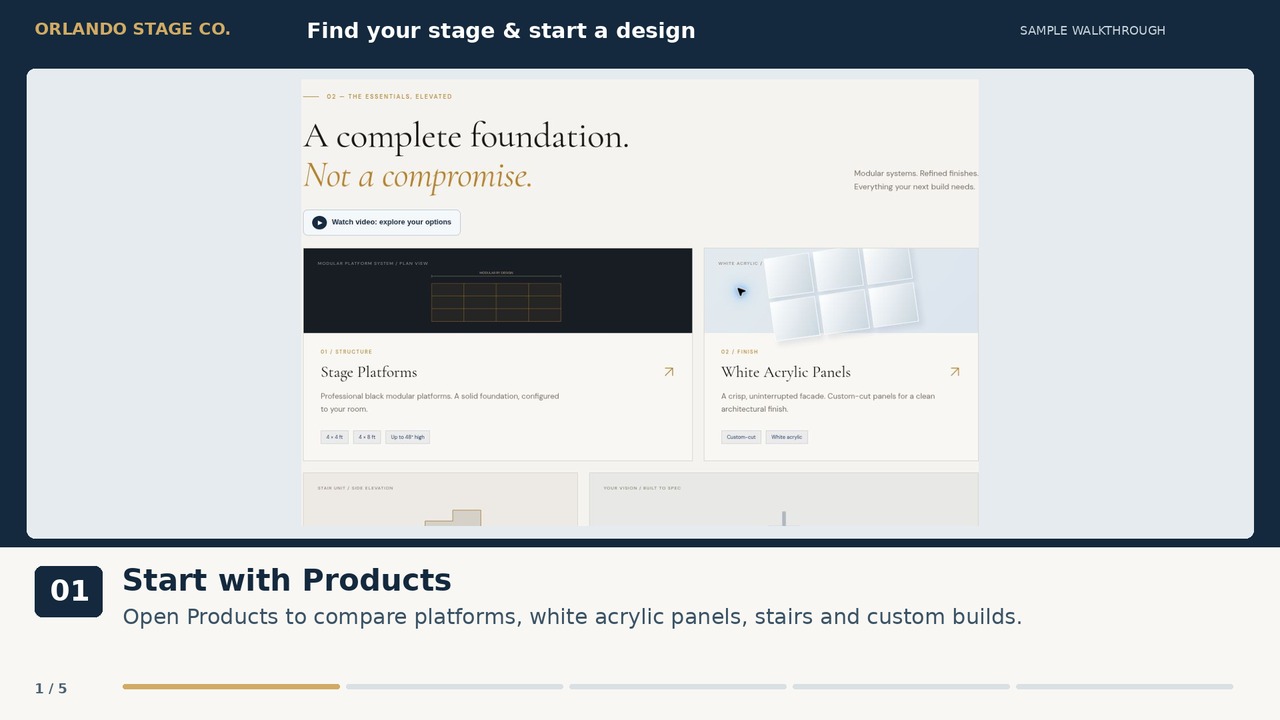
  1. Start with Products
    Open Products to compare platforms, white acrylic panels, stairs and custom builds.
  2. Browse Our Work
    Browse real stage photos in Our Work. Tap a photo to enlarge it, then use the arrows to compare finishes and stairs.
  3. Build Your Stage
    Open the stage builder to set your footprint, height, finish and stairs. Each grid square is 4 × 4 ft.
  4. Continue with Build Room
    Use Build Room to place your stage alongside tables, chairs and other event areas.
  5. Send your requirements
    Use Get a Quote. Include your date, stage needs and full venue address so our team can review the event.
Link to this guide

Build a 16 × 12 ft stage

55 seconds · Website walkthrough

Watch video
Read the steps
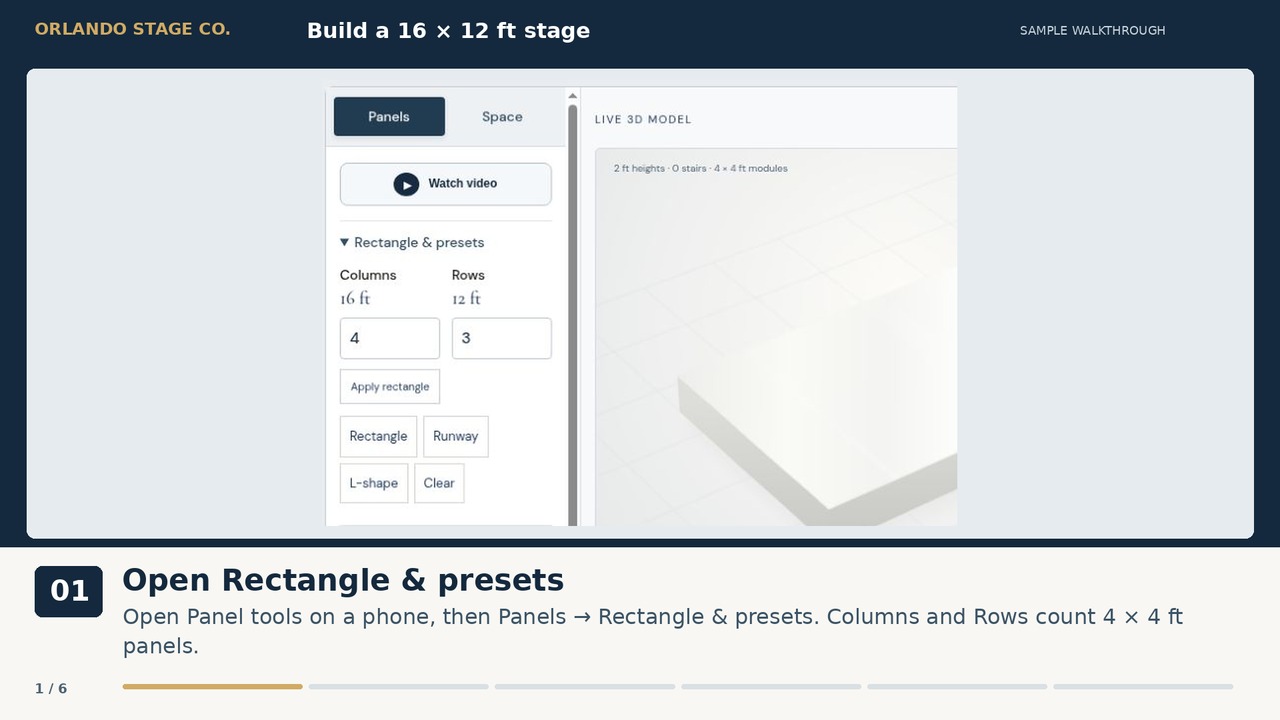
  1. Open Rectangle & presets
    Open Panel tools on a phone, then Panels → Rectangle & presets. Columns and Rows count 4 × 4 ft panels.
  2. Choose 4 columns and 3 rows
    Each panel is 4 × 4 ft. Four columns × three rows gives a 16 × 12 ft stage.
  3. Apply the rectangle
    Click Apply rectangle. Check the 12-panel count and 16 × 12 ft footprint below the preview.
  4. Make a custom shape
    Close Rectangle & presets, choose Add / remove, then tap a filled square to remove that panel. Tap again to restore it.
  5. Check the stage from above
    Use 3D and Top to inspect your design. Fit stage brings the whole model back into view.
  6. Move on to the room
    Build Room opens the room planner. Use This Design in My Quote carries your stage details into the request.
Link to this guide

Set one height or create tiers

46 seconds · Website walkthrough

Watch video
Read the steps
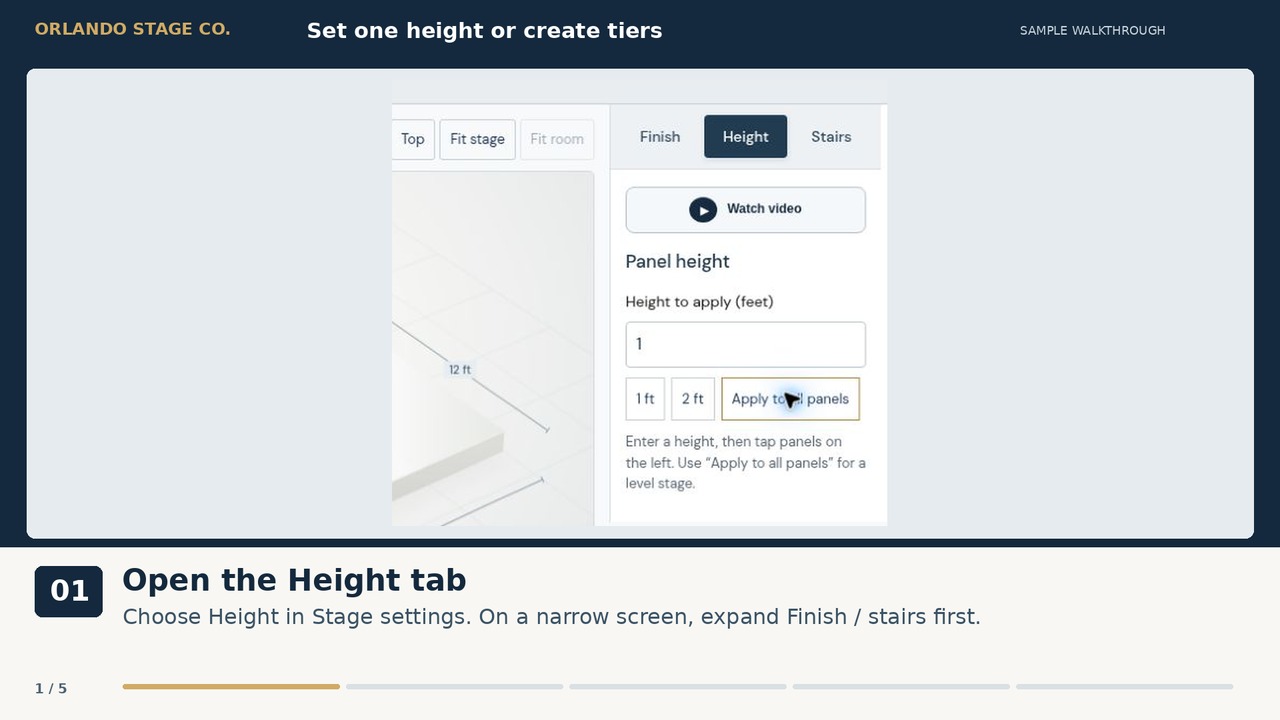
  1. Open the Height tab
    Choose Height in Stage settings. On a narrow screen, expand Finish / stairs first.
  2. Enter the height in feet
    Use Height to apply, or choose 1 ft or 2 ft. Check the unit before applying a value.
  3. Make a level stage
    Click Apply to all panels. This example is now 1 ft high across every panel.
  4. Set individual panel heights
    For tiers, choose a height, select Set height on the left, then tap the panels you want to change.
  5. Review the result
    Check the raised section in 3D and the height summary. Our team reviews the final construction with you.
Link to this guide

Compare stage finishes

45 seconds · Website walkthrough

Watch video
Read the steps
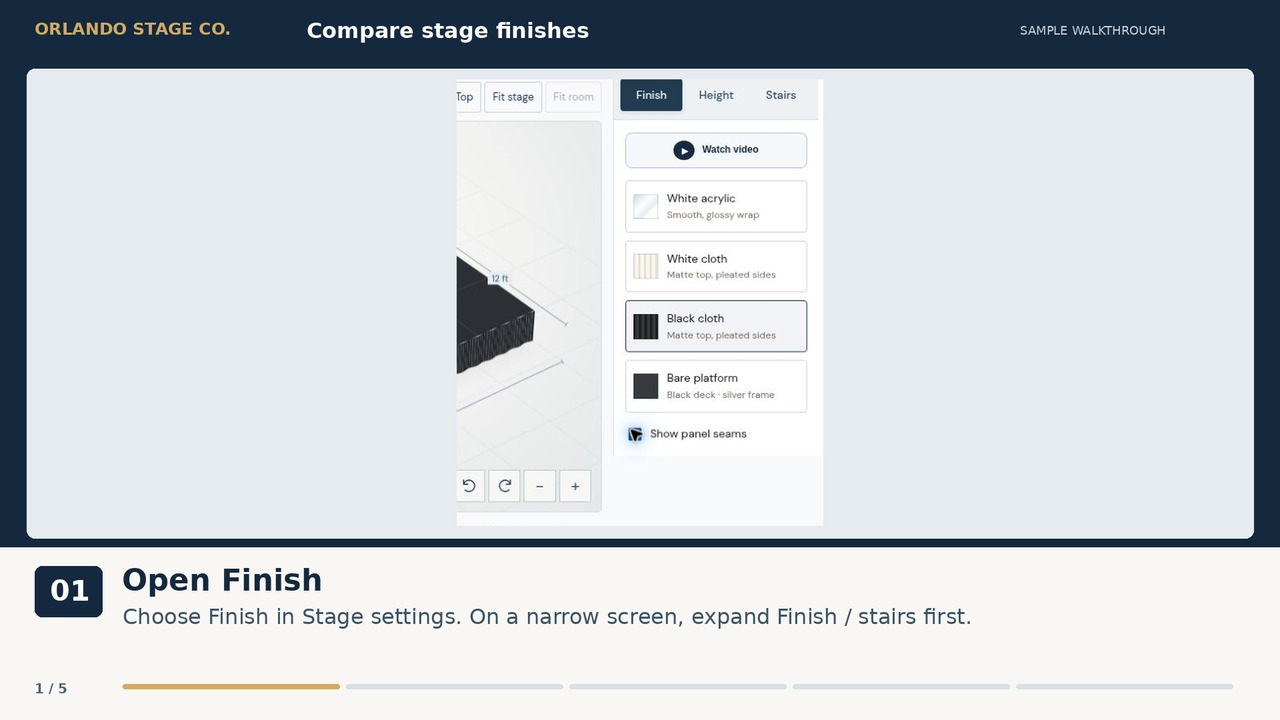
  1. Open Finish
    Choose Finish in Stage settings. On a narrow screen, expand Finish / stairs first.
  2. Choose the look
    Select White acrylic, White cloth, Black cloth or Bare platform. The preview updates immediately.
  3. Inspect it in 3D
    This example uses Black cloth. Rotate the model using the arrows, or drag the preview.
  4. Show panel seams
    Turn Show panel seams on or off to inspect the 4 × 4 ft divisions. It changes the preview, not the footprint.
  5. Include the finish in your request
    Use This Design in My Quote adds your selected finish and stage configuration to the form.
Link to this guide

Place and check stage stairs

55 seconds · Website walkthrough

Watch video
Read the steps
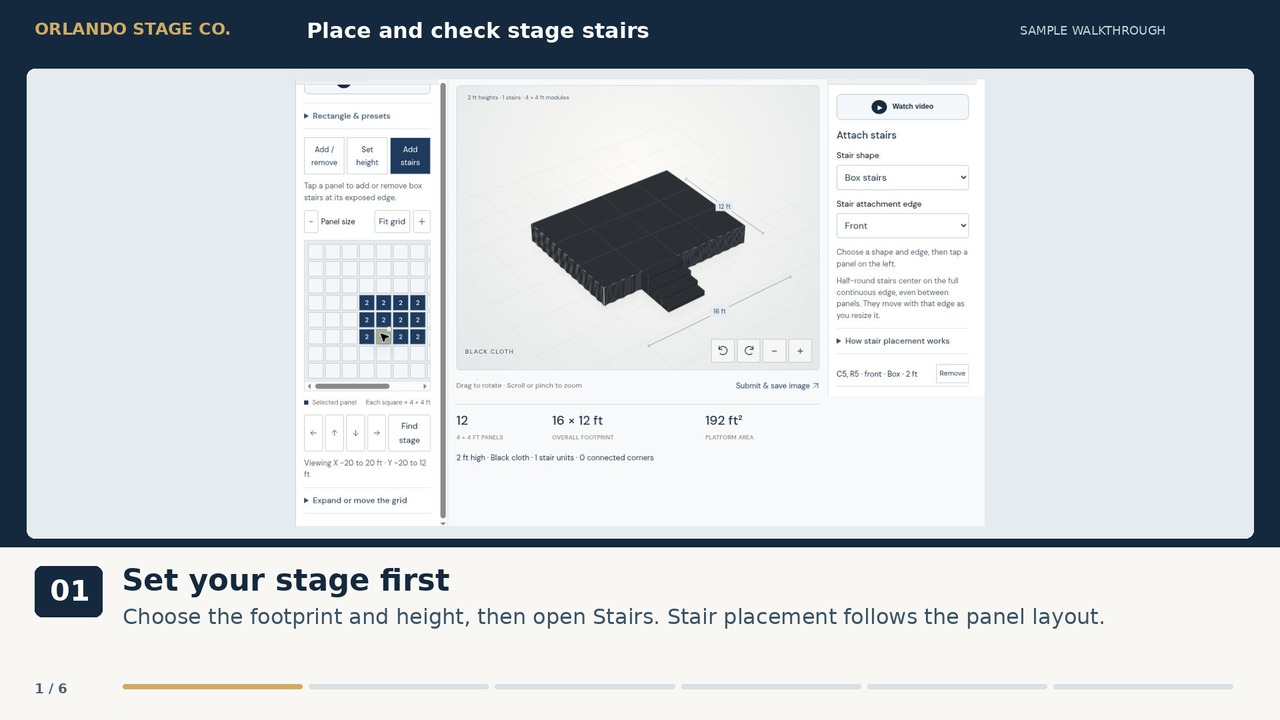
  1. Set your stage first
    Choose the footprint and height, then open Stairs. Stair placement follows the panel layout.
  2. Choose shape and edge
    Select Box stairs or Half-round stairs, then Front, Back, Left or Right under Stair attachment edge.
  3. Select Add stairs
    Choose Add stairs above the panel grid. Then tap a panel with an exposed edge on your chosen side.
  4. Check the result in 3D
    The box stairs appear on the selected front edge. Their position and height are listed under Attached stairs.
  5. Understand half-round stairs
    Half-round stairs center on the full continuous edge. Use the 3D preview to check their extra floor space.
  6. Remove or revise a stair unit
    Use Remove beside an attached stair entry to fix its placement. Confirm access and final dimensions with our team.
Link to this guide

Arrange your event room

55 seconds · Website walkthrough

Watch video
Read the steps
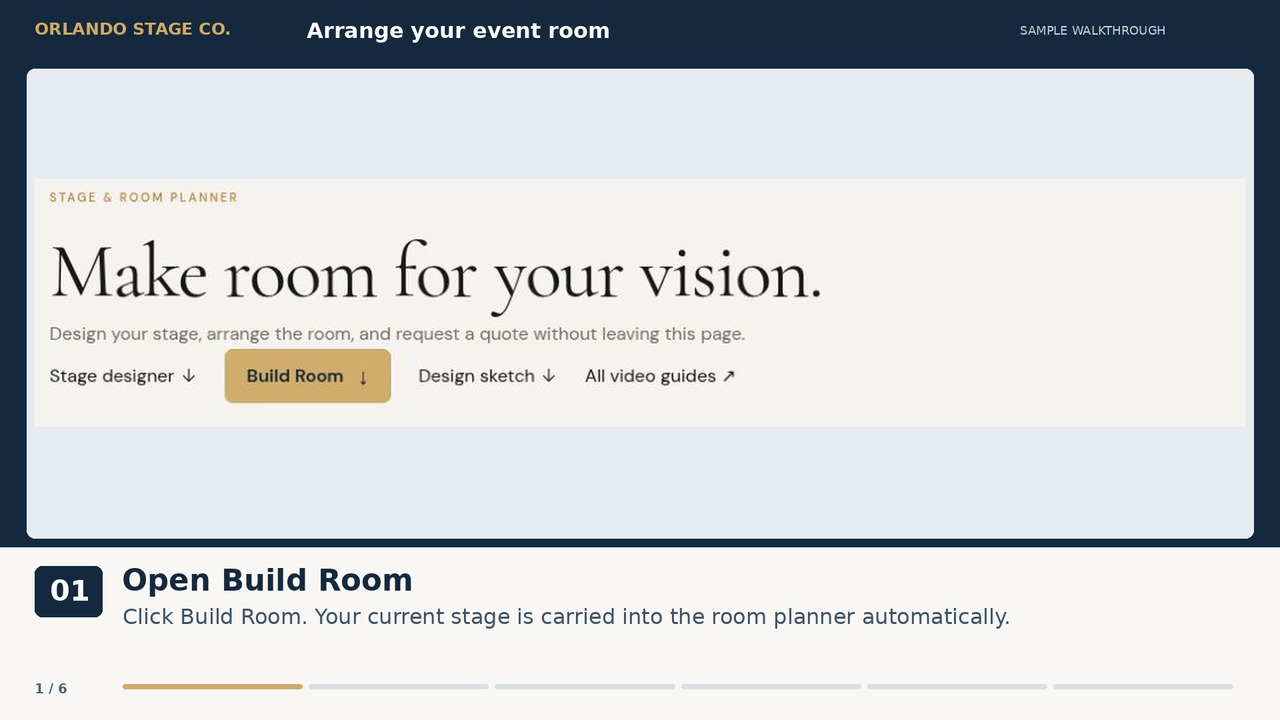
  1. Open Build Room
    Click Build Room. Your current stage is carried into the room planner automatically.
  2. Set the room size
    Open Space, enter the usable width and depth in feet, then click Apply room size. This example is 60 × 40 ft.
  3. Add a table
    Open Add items and choose Round table & chairs. The new table appears in the plan and becomes the selected item.
  4. Edit the selected item
    In Selected, change the label, size or chair count. Click Apply item changes to update the plan.
  5. Place it precisely
    Drag unlocked items on the plan, or open Exact position and enter Center X and Center Y. Apply the changes.
  6. Lock and include the plan
    Use Lock position when placement is right. Add Room Plan to My Quote includes the layout in your request.
Link to this guide

Upload & scale your venue plan

76 seconds · Website walkthrough

Watch video
Read the steps
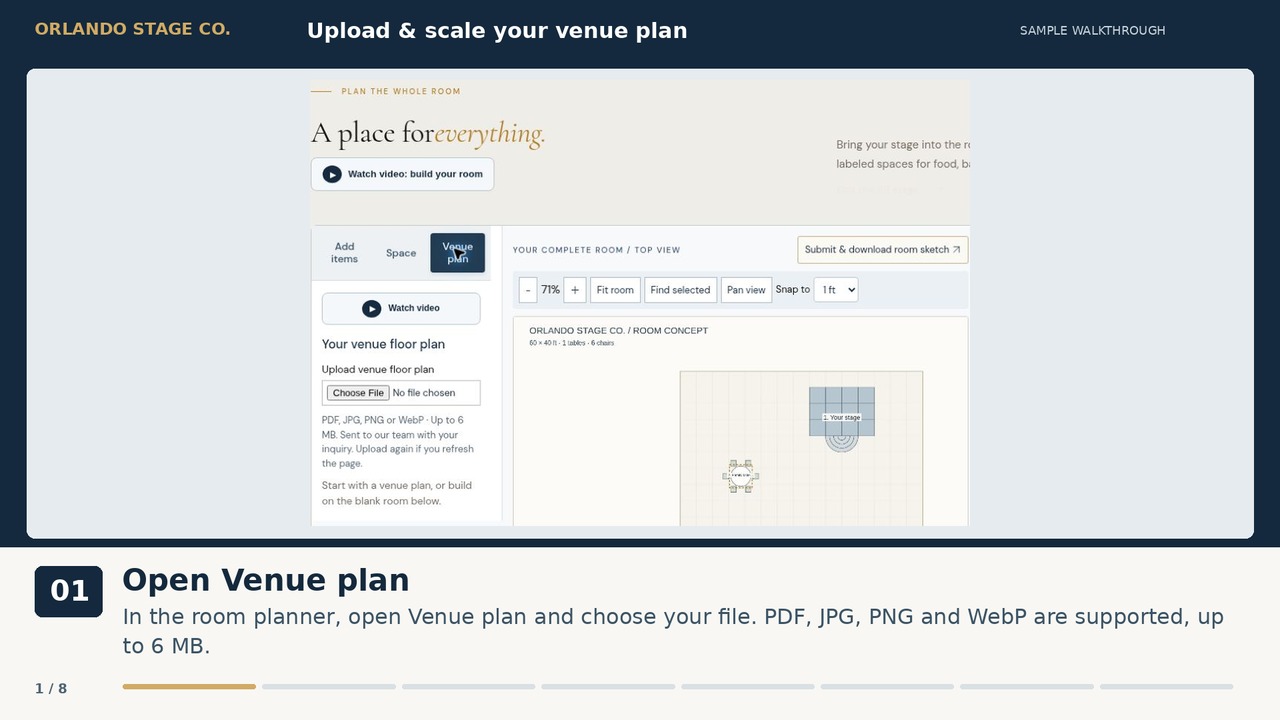
  1. Open Venue plan
    In the room planner, open Venue plan and choose your file. PDF, JPG, PNG and WebP are supported, up to 6 MB.
  2. Check the uploaded drawing
    For a PDF, select the correct page. Adjust Plan opacity or Rotate plan 90° if needed. Uploads start uncalibrated.
  3. Enter a known measurement
    Use a labeled distance from your drawing. Our sample wall is 60 ft, so enter 60 in Known distance (ft).
  4. Choose Set scale
    Click Set scale, then click the first end of that same measured distance on the drawing.
  5. Mark the other endpoint
    Click the other end of the same distance. Wait for “Scale set” before arranging the room.
  6. Set the room origin
    Choose Set room origin, then click the top-left corner of the usable room. That point becomes X 0, Y 0.
  7. Check room size and layout
    Use Space to enter the usable room dimensions. Recheck furniture positions: adjusting the drawing does not move furniture.
  8. Send the drawing with your plan
    Add Room Plan to My Quote, then submit the event form. Your original drawing goes with the design package. Upload again after a page refresh.
Link to this guide

Review & download your design

56 seconds · Website walkthrough

Watch video
Read the steps
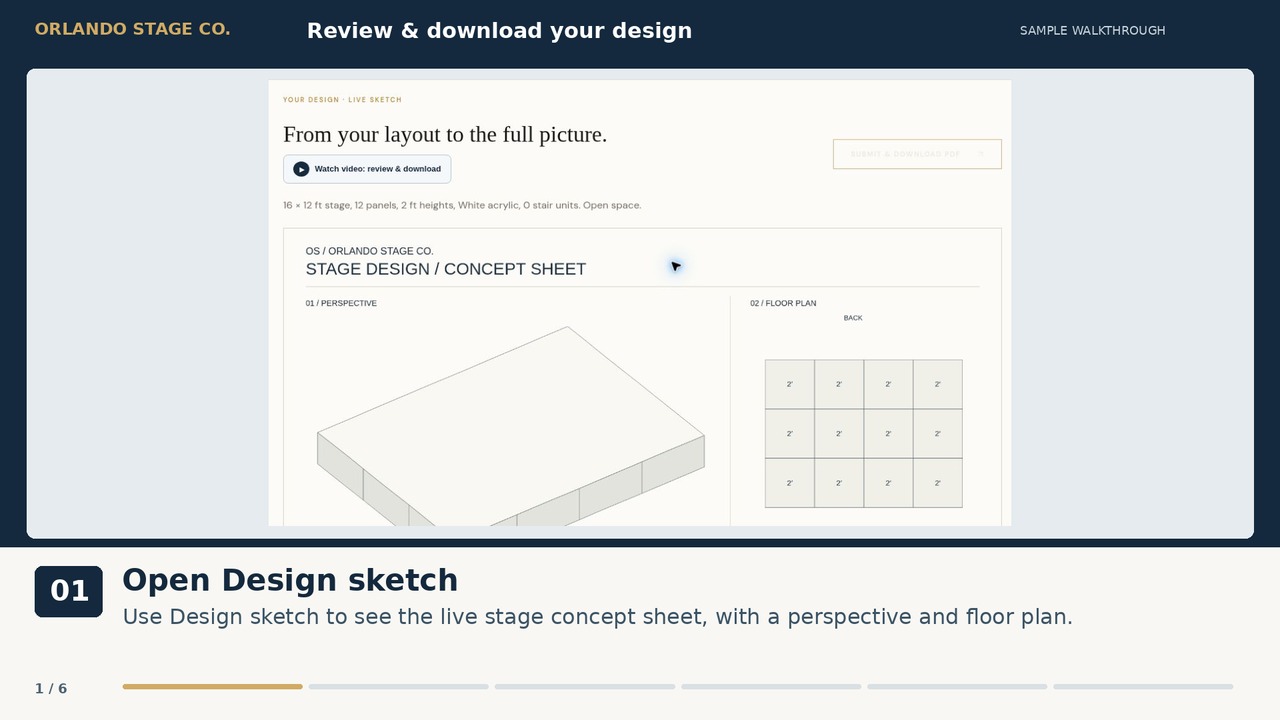
  1. Open Design sketch
    Use Design sketch to see the live stage concept sheet, with a perspective and floor plan.
  2. Review before sending
    Check the footprint, heights, finish and stairs. Use Edit this stage below the drawing if you need changes.
  3. Start with Submit & download PDF
    Before submission, this button directs you to the quote form. It does not bypass the required event details.
  4. Complete and submit the form
    Enter your contact information, event date and full venue address, then Submit Quote Request.
  5. Wait for the confirmation
    Downloads unlock after the email service accepts your submission. If delivery is pending, use the retry option.
  6. Download your submitted PDF
    Choose Download submitted design PDF. It contains the stage views and room plan. Design changes require a new submission to unlock new downloads.
Link to this guide

Send a complete quote request

56 seconds · Website walkthrough

Watch video
Read the steps
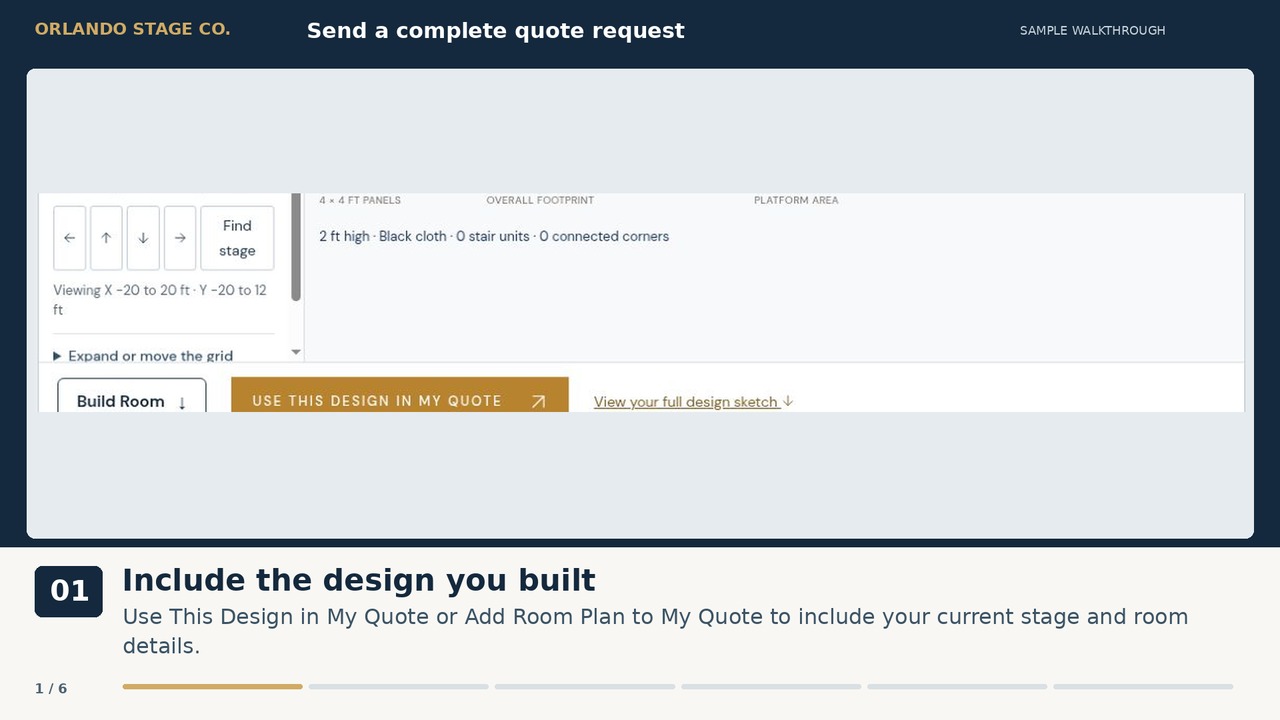
  1. Include the design you built
    Use This Design in My Quote or Add Room Plan to My Quote to include your current stage and room details.
  2. Add your contact details
    Enter your first name, last name and email. Add a phone number if you want us to reach you by phone.
  3. Choose the date and stage size
    Enter a future event date and select the stage size. For an undecided or unusual layout, use Custom / Not sure yet.
  4. Use the full event address
    Street address, city, state and ZIP are required. The venue name is optional and does not replace its address.
  5. Review notes, then submit
    Check the build notes and add access needs, timing or special requirements. Click Submit Quote Request once ready.
  6. Look for your reference
    Wait for the saved-request confirmation. This is an inquiry; our team reviews the details before confirming pricing and availability.
Link to this guide

Use your private client portal

48 seconds · Website walkthrough

Watch video
Read the steps
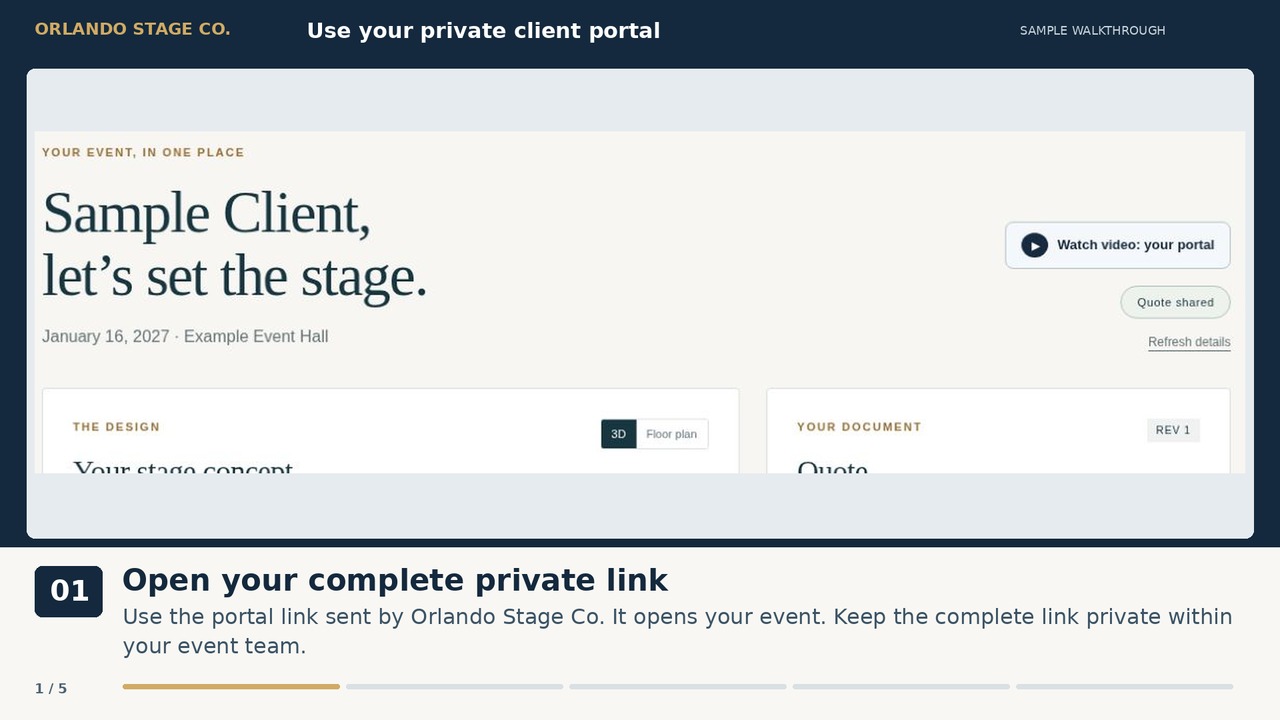
  1. Open your complete private link
    Use the portal link sent by Orlando Stage Co. It opens your event. Keep the complete link private within your event team.
  2. Check your stage concept
    Switch between 3D and Floor plan to review the stage shown in your shared quote or invoice.
  3. Download your document
    Download quote & terms gives you the shared PDF. Check the reference and revision so you know which version you are reviewing.
  4. Check the recorded balance
    Payment overview shows payments recorded by our team. The portal does not process payments; contact us to arrange them.
  5. Review timing and files
    Check Setup & pickup and Design package. For corrections or missing details, use Contact your team; Refresh details loads updates.
Link to this guide

Use the planning journal

36 seconds · Website walkthrough

Watch video
Read the steps
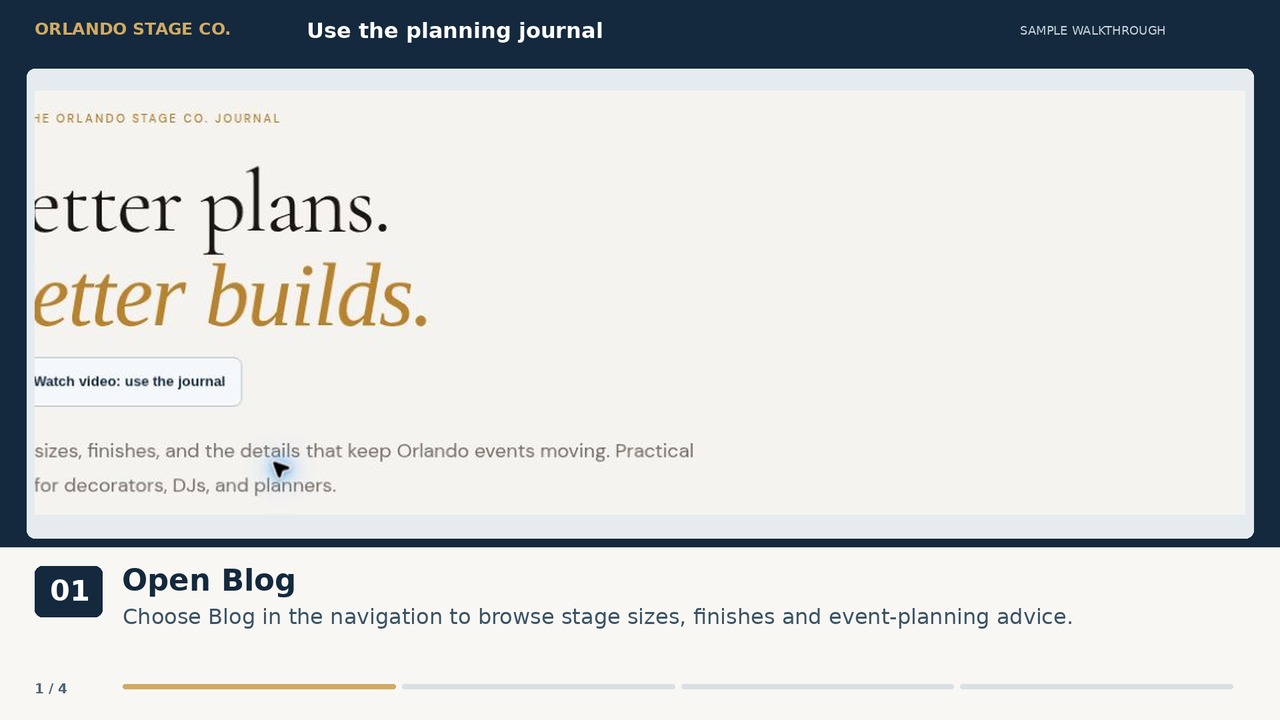
  1. Open Blog
    Choose Blog in the navigation to browse stage sizes, finishes and event-planning advice.
  2. Choose a relevant guide
    Select a title or Read guide. Start with stage sizing if you are deciding how much platform space you need.
  3. Read the planning details
    Use the article to prepare your questions and requirements. Sizing examples help plan a brief; they do not confirm a final build.
  4. Try the stage builder
    Use Open Stage Builder at the end of the article to turn your requirements into a stage concept.
Link to this guide

Report a website problem clearly

39 seconds · Website walkthrough

Watch video
Read the steps
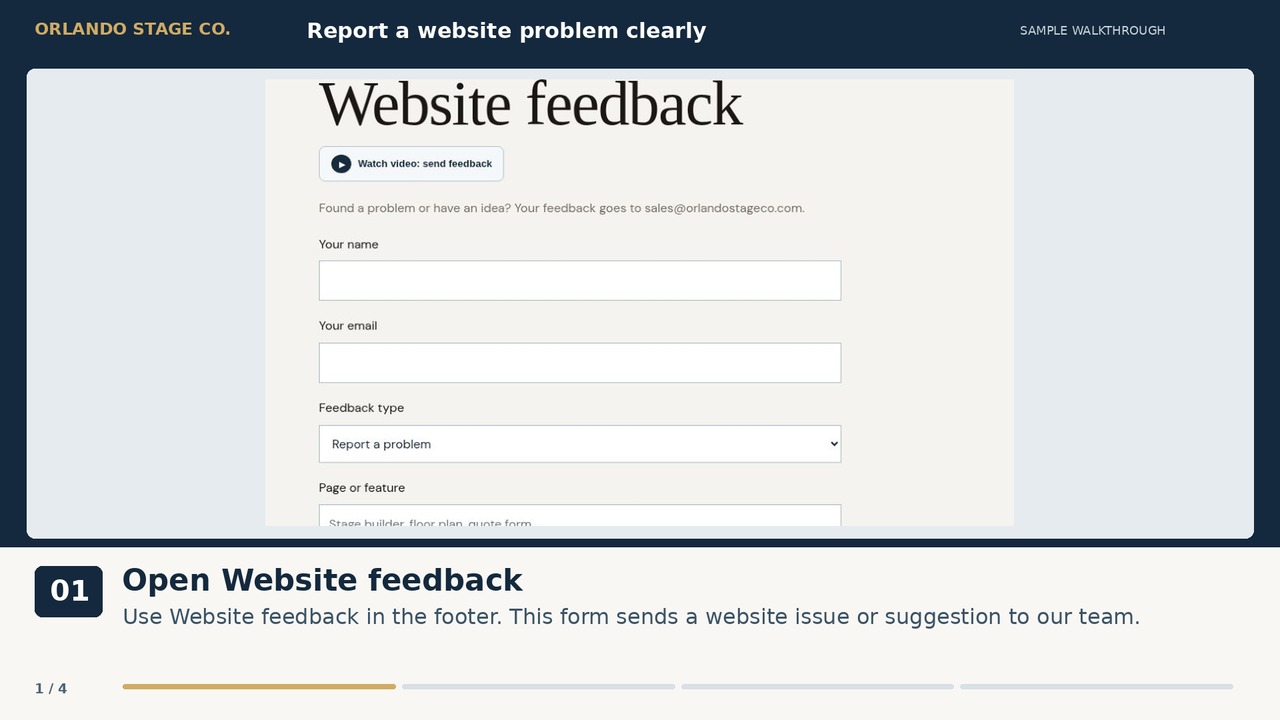
  1. Open Website feedback
    Use Website feedback in the footer. This form sends a website issue or suggestion to our team.
  2. Add a reply address
    Enter your name and email so we can follow up. Choose Report a problem or Suggest an improvement.
  3. Describe what happened
    Name the page, what you clicked, what happened and what you expected. Include your device and browser when relevant.
  4. Send and check confirmation
    Click Send feedback and wait for the confirmation. If an error or pending-email message appears, follow the retry instruction.
Link to this guide